Optics Reborn V2
An edge glow effect with inner/outer color gradients and temporally coherent noise modulation. Creates beautiful animated glows around matte edges with novel sampling for smooth, organic results.
Overview
Optics Reborn generates glows that radiate from matte edges with:
- Dual Color System - Separate inner and outer colors for gradient glows
- Animated Noise - Procedural noise modulation for organic, living glows
- Light Wrap - Edge blur for natural foreground/background integration
- Foreground/Background Dimming - Control brightness inside and outside the matte.
Quick Start
Easiest: Use the Presets!
 In Resolve, select the effect from the ofx list and drag it onto a corrector node (color page) or onto a clip (edit page). In After Effects or Premiere, the effect is in the usual effects libraries - apply as usual. In Fusion, add it as a tool between your footage and the output.
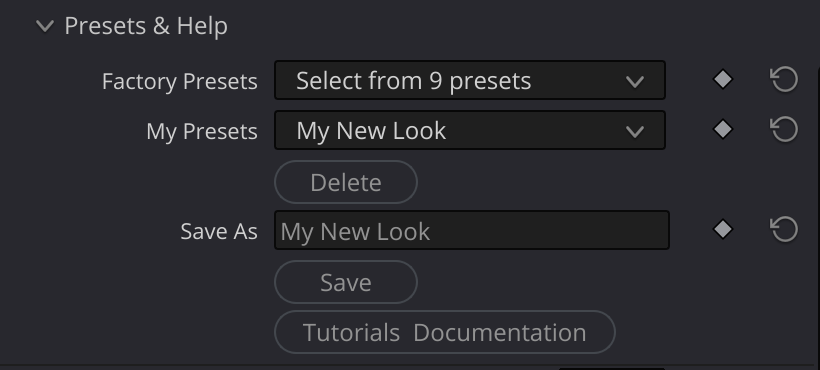
In the presets group, there are two dropdowns: "Factory Presets" and "My Presets". Try out the various factory presets to get the idea of the range of effects you can get with the Optics Reborn OFX.
You might have to adjust the Advanced Noise-> Noise Scale, depending on how large the element you are adding noise to is.
Later, when you develop your own looks, you can save your own presets; Give your look a name in the "save as" field, and click "save". Then, your own presets will be available in the "My Presets" drop down.
Manual Effect Quick Start:
- Apply the effect to your clip
- Give it a Mask Shape (white = foreground):
- Resolve (color page): connect your matte to the node's second (bottom) input, green tab, and leave Use Input 2 As at its default, Mask Shape
- Fusion: wire your matte into the node's Mask Shape input port
- After Effects / Premiere: set the Mask Shape layer dropdown at the top of the Effect Controls to your matte layer. Until you pick one, the shape is black and there is no glow
- Adjust Radius to control glow spread
- Set Inner and Outer Colors for your desired gradient
- Increase Overall Density for a stronger effect
Inputs
| Input | Required | Description |
|---|---|---|
| Source | Yes | The foreground/background image |
| Mask Shape | Strictly no - but without one there is no glow at all: unconnected = black shape = no edges to glow from (and the "/ Alpha" modes output fully transparent) | A grayscale matte defining the edge (white = inside, black = outside). Resolve color page: the node's second input, green tab. Fusion: its own input port. After Effects / Premiere: its own layer selector |
Resolve color page: leave Use Input 2 As on Mask Shape. Routing Input 2 to Matte Input leaves the shape black and the effect does nothing - the color page's single second input can only serve one role at a time. In Fusion, After Effects and Premiere every input has its own connection, so a Matte and the Mask Shape can be used together.
Parameters
Main
Core glow controls.
| Parameter | Type | Default | Range | Description |
|---|---|---|---|---|
| Radius | float | 4.0 | 0.0 - 100.0 | How far the glow radiates from the matte edge |
| Overall Density | float | 1.0 | 0.0 - 10.0 | Overall brightness multiplier for the entire glow |
Inner Color
Controls the color closest to the matte edge.
| Parameter | Type | Default | Description |
|---|---|---|---|
| Inner Color | color | green (0.616, 1.0, 0.431) | The color at the matte edge |
| Inner Density | float | 1.0 | Intensity of the inner color (0.0 - 10.0) |
Outer Color
Controls the color at the outer edge of the glow.
| Parameter | Type | Default | Description |
|---|---|---|---|
| Outer Color | color | red (1.0, 0.133, 0.133) | The color away from the matte edge |
| Outer Density | float | 1.7 | Intensity of the outer color (0.0 - 10.0) |
| Falloff | float | 0.5 | Controls inner/outer color transition (higher = more inner color) |
Falloff
The Falloff parameter controls how the inner and outer colors blend. Low values favor the outer color, high favors the inner color.
Filtering
Separate blur controls for softening the matte and light-wrap effects independantly.
Glow Blur
Pre-blurs the matte to create a softer glow foundation:
Edge Blur
Creates a light-wrap effect at the boundary between foreground and glow.
Simple Noise
Basic noise jitter. A more "frenetic" looking effect.
| Parameter | Type | Default | Range | Description |
|---|---|---|---|---|
| Simple Noise | float | 0.0 | 0.0 - 100.0 | High frequency noise jitter on sample positions |
Simple Noise adds random variation/flicker to the glow pattern, breaking up uniformity. However, it is uniform across the glow. (unlike advanced noise, which usually looks more interesting.)
Advanced Noise
Animated procedural noise for advanced glow edges.
| Parameter | Default | Range | Description |
|---|---|---|---|
| Advanced Noise | True | - | Enable animated procedural noise modulation |
| Noise Speed | 1.0 | -100 to 100 | Animation speed |
| Noise Time Offset | 0.0 | -1000 to 1000 | Manual animation offset. Usually unnecessary - Use to vary the same effect, when applied to successive shots. |
| Noise Scale | 10.0 | 0.1 - 100.0 | Size of noise pattern. This changes scales the "noise space" so it behaves in the opposite way to what you might expect - Small values make larger noise patterns. |
| Noise Position | 0.5, 0.5 | - | Position offset for noise pattern |
Noise Remapping
Fine-tune how noise values affect the glow intensity. This is similar to using the "Histogram" in Photoshop, but it acts on the animated noise. The Noise In Low and Noise In High clip the lowest and highest noise values. The Noise Out Low and Noise Out High remap those clipped values.
| Parameter | Type | Default | Range | Description |
|---|---|---|---|---|
| Noise In Low | float | 0.0 | -1.0 to 1.0 | Input low point (values below map to Out Low) |
| Noise In High | float | 1.0 | 0.0 to 2.0 | Input high point (values above map to Out High) |
| Noise Out Low | float | 0.2 | -1.0 to 10.0 | Output minimum (glow multiplier) |
| Noise Out High | float | 2.0 | -1.0 to 10.0 | Output maximum (glow multiplier) |
If the IN values are close to each other, you get more "crinkly" or contrasty noise; If they are farther apart, you get smoother noise. The Out low controls how bright the dimmest parts are, and the Out High controls how bright the brightest parts are.
At the end of the day, it's best to just play with these until you like it, and don't overthink it.
FG/BG Dimming
Control brightness inside and outside the matte.
When you have a bright scene, glows might not read very well. Use these controls to darken the background separately from the subject, so the glow can... you know, glow.
| Parameter | Default | Range | Description |
|---|---|---|---|
| Foreground Dim | 1.0 | 0.0 - 2.0 | Brightness multiplier for matte area |
| Background Dim | 1.0 | 0.0 - 2.0 | Brightness multiplier for non-matte area |
Output
You might want to composite the glows in your own ways - in Fusion, After Effects, or Premiere, or from the color page via its alpha output. This selector gives you access to various parts of the output.
| Parameter | Default | Options | Description |
|---|---|---|---|
| Output | Full Frame Comp / Solid Alpha | Full Frame Comp / Solid Alpha, No FG Punchout / Solid Alpha, Glow Only / Alpha, Glow with Punchout / Alpha, Glow with Subject / Alpha | Output mode selection |
Output Modes
The label suffix teaches the alpha behavior: "/ Solid Alpha" modes give a finished full frame with opaque alpha; "/ Alpha" modes are elements - their alpha carries the coverage of exactly what's in the RGB, ready to composite over something else.
| # | Mode | RGB contains | Alpha contains | Use it for |
|---|---|---|---|---|
| 0 | Full Frame Comp / Solid Alpha | background + subject + glow, fully comped | solid (opaque) | grading; the finished look (the normal mode of operation) |
| 1 | No FG Punchout / Solid Alpha | background + subject + glow without punching glow out of the subject | solid (opaque) | finished look where glow may overlay the subject |
| 2 | Glow Only / Alpha | the glow alone, on black | glow coverage | comping glow additively over your own subject |
| 3 | Glow with Punchout / Alpha | the glow with the subject punched out, on black | punched-glow coverage | comping glow around a subject you already have |
| 4 | Glow with Subject / Alpha | subject with glow, on black (mode 0 minus its background) | subject-and-glow coverage | comping subject-plus-glow as one element |
What you see depends on the host: Fusion, After Effects and Premiere show the raw element (on black, with its alpha). Resolve's color page shows it already composited over your source unless you turn the node's Use OFX Alpha for Mixing off (details under Compositing below).
With a Matte connected (After Effects / Premiere / Fusion - the hosts where the Matte has its own input), the Solid Alpha modes screen the matte into the alpha instead of staying opaque. On Resolve's color page Input 2 should stay on Mask Shape, so there the Solid Alpha modes stay opaque.
Mode 4 notes: Background Dim does nothing here (there's no background in it), and a disconnected or black Mask Shape gives fully transparent output - no shape, no element. That's correct, not a failure.
Alpha Source = Opaque (Alpha = 1) (in the Alpha/Matte group) forces solid alpha in the two "/ Solid Alpha" modes - the escape hatch when a connected Matte would otherwise ride into the alpha. It has no effect in the "/ Alpha" element modes: they never read source alpha, by design.
Compositing the element modes ("/ Alpha")
Modes 2/3/4 come out premultiplied - coverage is already baked into the RGB. Glow is additive light and can exceed 1.0 on a picker; that's expected. Keep the Premultiply Output checkbox OFF for these modes in every host, and keep Blend at 1 (Blend below 1 mixes the original frame back in, alpha included).
- Resolve (color page): with the node's default Use OFX Alpha for Mixing ON, the element is composited over your source right in the viewer - Glow Only looks like glow over your clip, and that is the finished comp. Turn Use for Mixing OFF (right-click the node) to see the raw element on black, or to send its alpha to the timeline and composite there (see Extra Inputs, Mattes & Alpha below).
- Fusion: default Merge (its Additive default is the premultiplied-over operator).
- After Effects: set the layer blend mode to Luminescent Premul.
- Premiere: best used with the "/ Solid Alpha" modes for now - Premiere has no Luminescent Premul blend mode, so element-mode comping may show a slight dark edge on the glow.
Sampling
The defaults will probably be fine, but if you see sampling artifacts, or have performance issues, you can adjust the sample rates here.
| Parameter | Default | Description |
|---|---|---|
| Min Samples | 128 | The smallest number of samples used on small radii |
| Max Samples | 500 | The largest number of samples used on large radii |
| Sample Multiplier | 1 | an overall quality multiplier - Increasing this will give you more samples - but before you increase this parameter, try adding some glow blur first. |
| Reference Radius | 30 | The radius that will get the maximum number of samples. Radii above this will be capped at the max number of samples as well. |
Tips & Tricks
Try with Text
Use Resolve's Text tool to generate text, and use that as your matte. Then, in the Output group, try "Glow with Punchout / Alpha" to get a dramatic effect. In Fusion, a Text+ node's output works directly as the Mask Shape; in After Effects, precompose a text layer and pick it in the Mask Shape dropdown.
Glow appears grainy
- Increase Glow Blur to soften
- Reduce Simple Noise
- Increase Sample Multiplier (as little as possible)
Colors not blending smoothly
- Adjust Falloff to control gradient
- Try similar Inner/Outer colors
- Increase Glow Blur
Performance issues
- Reduce Max Samples for preview
- Decrease filtering-> Glow Blur
- Lower Radius if possible
Noise too chaotic
- In Advanced Noise:
- Reduce Noise Speed
- Widen the Noise In Low/High range
- Narrow the Noise Out Low/High range
- Adjust Noise Scale for smoother patterns
Troubleshooting
I picked Glow Only but I still see my footage behind the glow
- You are on Resolve's color page with the node's Use OFX Alpha for Mixing ON (the default): Resolve composites the element over the source for you, so the black never shows. That is the finished comp. To see the raw element on black - or to composite it yourself on the timeline - right-click the node and turn Use for Mixing OFF.
Extra Inputs, Mattes & Alpha
Applies to AVFX effects updated August 2026 or later - you'll know your build has it if you see the "Alpha/Matte" parameter group.
This section is shared by the documentation of every AVFX effect - the information here is general, not specific to this effect.
The short version
The AVFX effects framework supports any number of extra inputs in addition to the clip the effect is applied to - for example: a blur map, a custom bokeh shape, an external matte, and so on. In most hosts, each one simply gets its own connection: After Effects and Premiere Pro give every input its own layer selector in the Effect Controls, and in Fusion (and other node-based hosts) each node gets a "port" for each input, as you'd expect.
Alpha is the fourth channel of the image itself - the "A" in RGBA - used for compositing downstream of the effect. It rides along with the RGB through the processing, and embedded alpha behaves just as you'd expect: if your source clip already carries an alpha channel, nothing special is needed.
The one ability AVFX adds everywhere: your input alpha can come from the source's embedded alpha, or from an external matte injected in its place. A matte is any grayscale or RGB clip - its brightness becomes the alpha (the matte clip's own alpha channel is ignored, so it doesn't need one). Unlike other extra inputs, which steer how the effect processes the image, the Matte input feeds this alpha. From there it rides through the processing along with the source's RGB, just like embedded alpha would, and what emerges is the output's alpha - consistent with the processed image, because it went through the same processing.
The Alpha Source selector (in the Alpha/Matte group) chooses where the input alpha comes from: Auto (the effect picks sensibly), Source's Embedded Alpha, Matte Input's Luminance (called Matte Layer's Luminance in After Effects and Premiere), or Opaque (Alpha = 1) - the escape hatch when you just want a solid frame.
Premultiply Output depends on what the effect hands you, so there is no single right setting:
- Turn it ON when the output is a processed picture carrying a matte in its alpha - the usual case when you feed a Matte input. Without it, Resolve's timeline composite leaves bright fringes or sparkle along the matte edges.
- Leave it OFF when the output is an element on black, such as Optics Reborn's "/ Alpha" glow modes. Those already have their coverage baked into the color, so switching it on multiplies it in a second time and gives you a dark edge instead.
Rule of thumb: ON if the frame still looks like your shot, OFF if it looks like a glow floating on black.
One host is different: Resolve's color page handles inputs and alpha in its own way, and is described in the next section. If you don't use the color page, skip straight to your host's section below.
Resolve color page
A color-page node accepts at most two connections. The first is always the main image being processed - so every extra input the effect can accept has to share the second connection, and that second input can only serve one function at a time. This is a limitation of Resolve's color page.
That's what the "Resolve Color Page: Input 2 Routing" group is for: choosing which of the effect's extra inputs the second connection serves - a map that steers the processing, or the Matte that feeds the alpha. Take Advanced Lens Blur: there are three possible uses for its second input - the Kernel (an image used as the bokeh shape), the Blur Map (brightness controls blur strength per pixel), or the Matte Input (external alpha for compositing). You can only use one of these at a time, and the "Use Input 2 As" selector is how you choose: connect your clip to the node's second green input, then set the selector to the input it should feed. (The Matte Input is always one of the choices - the framework provides it on every effect. If an effect has no other extra inputs, there's no selector at all: the second input simply is the Matte.)
If you need two of them at once - say, an external matte and a custom kernel - you'll have to use the Fusion page (or another host), where all of the inputs are available simultaneously.
Don't rely on embedded alpha on the color page - its results there are unpredictable (the color page does some things under the hood that are out of reach of the OFX plugin). Feed a matte through Input 2 instead (Use Input 2 As → Matte Input).
Compositing: in Resolve, the color page and the timeline share the job: the actual comp happens on the timeline - your clip sits on a video track above whatever it composites over - while the color page is where the alpha is produced. The timeline only sees that alpha if you explicitly export it from the node graph: right-click in the color page's node area, choose Add Alpha Output, and connect your node's blue alpha output to it. The effect's node already carries the alpha - "OFX Alpha" is enabled by default - but you should also right-click the node and deselect "Use OFX Alpha for Mixing": that setting turns the alpha into a mix mask between the node's input and output instead of compositing coverage, which is almost never what you want.
Resolve/Color Page Troubleshooting:
- Bright fringes or "sparkle" at matte edges during playback - turn ON Premultiply Output. If you followed the Compositing steps above, "Use OFX Alpha for Mixing" is already off, so that is not the switch that helps here - Premultiply is. (Stills can look clean while motion sparkles: playback renders at reduced resolution, which creates the fractional alpha that exposes the mismatch.)
- The composite looks like a blend of the clean and processed image at the edges - same cause: "Use OFX Alpha for Mixing" is ON. Turn it off. (If the whole frame looks blended with the source, that's a different knob - check that Global Blend is set correctly.)
After Effects & Premiere Pro
Each of the effect's inputs has its own layer selector in the Effect Controls - pick any layer in your comp (or Premiere sequence) for each one. It's best to precompose vector layers (shapes, text) before using them as inputs.
Compositing: for glow or element outputs, set the layer blend mode to Luminescent Premul - the Normal mode attenuates premultiplied elements twice and leaves a subtle dark edge. Keep Blend at 1 when compositing with the effect's alpha (Blend mixes the untouched source back in, alpha included) - fade with layer opacity downstream instead.
AE Troubleshooting:
- Dark edge on glows - the layer blend mode is Normal; switch to Luminescent Premul. If it's darker still, Premultiply Output is ON; turn it off.
Fusion & everywhere else
Fusion (and Resolve's Fusion page) gives the node a connection per input, and compositing needs no special setup: the effect's output carries its alpha embedded, just as you'd expect, so wire it into an ordinary Merge node and leave its settings at their defaults.
General Troubleshooting:
- If the same comp looks different in different hosts - the math is identical in every host, but the color transforms might not be. Make sure you're evaluating everything through the same color pipeline. (In Resolve, that means pinning the project's Timeline and Output color space to your delivery standard before comparing.)