Handheld Camera
Apply organic handheld camera motion with accurate motion blur using data from real handheld cameras.
Choose from 28 different handheld datasets, each with a different "character" recorded from real camera movements - from subtle interview setups to intense dramatic scenes.
Add an intimate feel to POV shots, or "grit" to moving shots to add interest to motion that is too bland.
What's New in Version 1.1
- 28 motion datasets, up from 21 - ten new sets drawn from dramatic narrative camerawork, plus a cleanup of the original library.
- Coarse Motion Removal - a new control that strips slow drift (pans, arcs, push-ins) out of a dataset, leaving just the handheld texture. See Coarse Motion Removal.
- 23 factory presets, up from 17, every one of them with an Image Scale value fitted to its dataset so the frame stays filled without overshoots or undershoots.
See the section at the bottom called Upgrading from 1.0
Overview
Handheld Camera brings authentic handheld camera movement to static shots, or "too smooth" footage:
- 28 Motion Datasets - Real captured camera movements
- Motion Blur - Physically accurate blur based on shutter angle
- Coarse Motion Removal - Keep the handheld texture, drop the slow drift
- Full Control - Independent rotation, translation, and scale adjustment
- Frequency Filtering - Separate high and low frequency motions - so you can easily get smoother or shakier character to your motion.
- Adaptive Sampling - Quality automatically scales with motion intensity
Motion Data Credits: Camera motion datasets captured by Jan Klier, Maury Rosenfeld, and Ian Hubert.
Quick Start
The best way to get started is to use the presets to get familiar with the range of effects, then delve into the individual settings.
Easiest: Use the Presets!
Select the effect from the ofx list, and apply it in the usual way for your host; In resolve, drag it onto a corrector node (color page) or onto a clip (editor page).
In the presets group, there are two dropdowns: "Factory Presets" and "My Presets". Try out the various factory presets to quickly get a look you like.
Later, when you develop your own looks, you can save your own presets; Give your look a name in the "save as" field, and click "save". Then, your own presets will be available in the "My Presets" drop down.
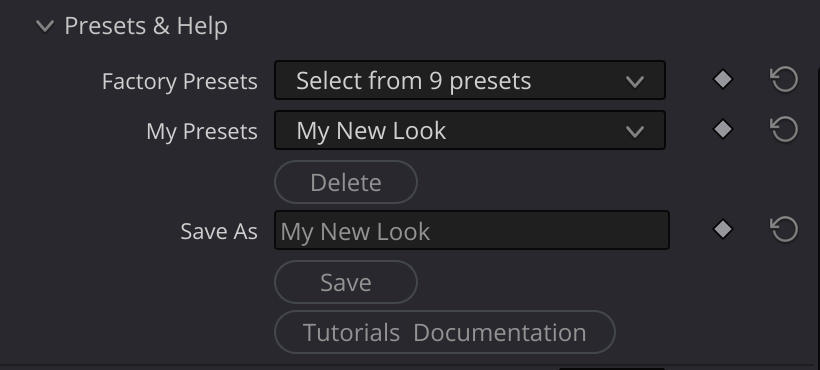
- Apply the effect to your clip
- Choose a Mocap Dataset from the dropdown
- Adjust Intensity to control how strong the motion is
- Set Image Scale high enough to avoid black edges
- Enable Motion Blur for realistic results
Inputs
| Input | Required | Description |
|---|---|---|
| Source | Yes | The image to apply camera shake to |
Mocap Datasets
The effect includes 28 motion datasets, each with different character and duration (frame count shown in parentheses). The number shown in the dropdown is part of the name, so the list stays in a predictable order. Many of them look quite similar, with very subtle differences.
Interview & Documentary Style
| Dataset | Frames | Description |
|---|---|---|
| 01 AK Interview Medium | 1279 | Medium shot interview, subtle natural movement |
| 02 AK Interview Far | 237 | Wide shot interview, minimal movement |
| 14 IH The Closeup | 439 | Close-up shot, intimate feel |
| 15 IH The Interview | 439 | Standard interview setup |
| 16 IH The Wedding | 162 | Wedding videographer style |
Handheld Walking
| Dataset | Frames | Description |
|---|---|---|
| 08 MR Walk | 358 | Walking with camera, natural bounce |
| 18 IH Walk To The Store | 123 | Casual walking motion |
Mobile/Action
| Dataset | Frames | Description |
|---|---|---|
| 03 MR Iphone Shaky | 299 | Phone-quality shakiness |
| 04 MR Jumpy | 305 | Nervous, jumpy movement |
| 06 MR Nervous | 559 | Anxious, jittery camera work |
| 09 IH Bike On Gravel | 127 | Cycling on rough terrain |
| 10 IH Handycam Run | 65 | Running with camera |
Subtle/Observational
| Dataset | Frames | Description |
|---|---|---|
| 05 MR Just Looking | 271 | Observer casually looking around |
| 07 MR Slightly Buzzed | 337 | Subtle unsteadiness |
| 11 IH Investigate | 372 | Careful, searching movement |
| 17 IH The Zeek | 401 | Very Subtle - You're gonna have to ask Ian Hubert who/what "The Zeek" is/means. Let me know if you find out! |
Vehicle/Special
| Dataset | Frames | Description |
|---|---|---|
| 12 IH Out Car Window | 161 | Shooting from moving vehicle |
| 13 IH Spaceship Shake | 144 | Sci-fi turbulence effect |
Dramatic Scene Sets (new in 1.1)
Ten sets taken from narrative scene camerawork. The shots these came from were handheld but (mostly) static shots where the DP's feet were planted - essentially lockoffs that have a little "life".
| Dataset | Frames | Description |
|---|---|---|
| 19 Car Mount | 1183 | Car-mounted camera; Not "bouncy" but taken from a camera that was mounted on the car's hood, pointed at the driver for a dialogue driven scene. |
| 20 Conversation At The Lake | 389 | Taken from a two-shot of a conversation. relaxed operating. |
| 21 Hostage | 183 | Tense, close, restricted movement |
| 22 In The Condo | 365 | Interior |
| 23 In The Pit | 370 | Low, confined, uneasy |
| 24 Long Lens Confession | 315 | Long-lens shot of a conversation |
| 25 Mercy | 234 | Slow, weighted dramatic movement |
| 26 Reading A Letter | 575 | Quiet, sustained, minimal reframing |
| 27 Standoff | 155 | Held tension with sharp corrections |
| 28 Suspense Hallway | 136 | Stalking movement down a corridor |
Parameters
Main Settings
Core controls for the Handheld Camera effect.
| Parameter | Type | Default | Range | Description |
|---|---|---|---|---|
| Mocap Dataset | choice | 01 AK Interview Medium | - | Select from 28 motion datasets - these are the raw datasets with no additional tuning. It's often better to start with an associated preset, then tune from there |
| Speed | float | 0.5 | 0.01 - 10.0 | Playback speed of the mocap data. Use this to make your shot calmer or more frenetic |
| Intensity | float | 0.7 | -10.0 to 10.0 | Overall intensity multiplier - larger values give greater motion range. |
| Image Scale | float | 1.075 | 0.1 - 10.0 | Scale of source image (increase to avoid edge reveal) |
Speed
Controls how fast the shake pattern plays:
- 0.5: Half speed, slower, floatier movement
- 1.0: Original recorded speed
- 2.0: Double speed, more frantic
Intensity
Master intensity control:
- 0.0: No shake (useful for A/B comparison)
- 0.5: Half intensity, subtle
- 1.0: Original recorded intensity
- 2.0+: Exaggerated shake
- Negative: Inverts the motion
Motion Blur
Simulate realistic motion blur based on camera movement.
| Parameter | Type | Default | Range | Description |
|---|---|---|---|---|
| Motion Blur | bool | true | - | Enable motion blur calculation |
| Shutter Factor | float | 0.5 | 0.0 - 10.0 | Shutter angle (0.5 = 180°, 1.0 = 360°) |
| Sample Multiplier | float | 1.0 | 0.1 - 10.0 | Quality multiplier for blur samples. You'll probably never need to change this. |
Shutter Factor
Maps to traditional shutter angle:
- 0.0: No motion blur (infinite shutter speed - some cell phones behave like this in bright environments)
- 0.5: 180° shutter (film standard)
- 1.0: 360° shutter (full frame exposure)
- 2.0+: Exaggerated blur, dreamy effect
Effect Scale
Independent control over different motion components. These Multiply the values - to increase or decrease the range of motion.
| Parameter | Type | Default | Range | Description |
|---|---|---|---|---|
| Rotation Factor | float | 1.0 | -100 to 100 | Multiplier for rotation component. Set to zero if you want the camera to remain level |
| Translation Factor | float | 1.2 | -100 to 100 | Multiplier for position component |
| Translation Scale X | float | 1.0 | -10 to 10 | X-axis translation scale - if there is not enough horizontal motion, increase this - and vice versa |
| Translation Scale Y | float | 1.0 | -10 to 10 | Y-axis translation scale. See above. |
| Zoom Factor | float | 0.5 | -10 to 10 | Multiplier for zoom/scale component |
Use these to customize the feel:
- Set Rotation Factor to 0 (or a low number): When you want the camera to feel like it's on a tripod, with an unlocked head.
- Set Zoom Factor to 0 (or a low number): When you don't want any zooming.
Effect Offset
Add static offsets to the motion. For instance, when you'd like to add a small amount of tilt that remains constant, or to move the whole scene left or right, up or down.
| Parameter | Type | Default | Range | Description |
|---|---|---|---|---|
| Rotation Offset | float | 0.0 | -360 to 360 | Static rotation offset in degrees |
| Translation Offset X | float | 0.0 | -2.0 to 2.0 | X position offset (UV space) |
| Translation Offset Y | float | 0.0 | -2.0 to 2.0 | Y position offset (UV space) |
| Frame Offset | float | 50.0 | -1000 to 1000 | Offset into the shake data |
Frame Offset
Start at a different point in the motion data:
- Avoid repetition when using the same dataset multiple times
- Avoid a specific "bump" in the effect by offsetting past (or before) it.
Coarse Motion Removal
New in version 1.1.
Some of these datasets were recorded from a camera that was actually going somewhere - panning across a room, arcing around a subject, pushing in on someone. That slow, deliberate movement is baked into the data along with the handheld texture, and it is usually not what you want when you are adding shake to a shot that already has its own camera move.
Coarse Motion Removal separates the two. It identifies the slow wander in the dataset and subtracts it, leaving the jitter and micro-corrections that read as "handheld" while discarding the intentional moves.
| Parameter | Type | Default | Range | Description |
|---|---|---|---|---|
| Coarse Motion Removal | float | 0.0 | 0.0 - 1.0 | How much slow wander to remove. 0 = off, 1 = full removal |
| Coarse Motion Window (frames) | int | 24 | 2 - 200 | Motion slower than roughly this many data frames counts as coarse |
How to use it:
- Leave it at 0.0 when you want the dataset exactly as recorded.
- Raise it toward 1.0 when a dataset has the character you want but is drifting off in a direction you don't want.
- The Window sets where the line falls between "coarse" and "texture". Larger values (say 48+) remove only very slow drift; smaller values (say 8-12) start eating into the handheld character itself. Sometimes it's necessary to go even lower, and this is where Coarse Motion Removal overlaps even more with Advanced filtering.
Advanced Filtering
Separate high-frequency jitter from low-frequency drift.
This is a powerful feature, that lets you quickly change the character of the sampled motion.
The easiest way is to use the "Balance" knob - it's kinda like the "tone control" on an old school radio. Move it left, and it makes the motion smoother, by cutting out the jittery component. Move it right, and it cuts out the "swimmy" motion, by removing the lower frequency components.
You can still dial in the highs and lows manually, with the individual high and low frequency knobs - and that's often the right choice. For instance, if the texture (high frequency components) are right, but the "swim" is too much - just lower the low frequencies. Or, it's just not "nervous" enough, but everything else looks good - just increase the high frequencies.
The bottom slider in this group - the filter size - is what defines the cutoff between high and low (in frames). In practice, you'll rarely need this control, but here's how it works, for the sake of completeness.
The useful range is from 2 frames to 5 or 6 frames, and 4 frames is the sweet spot for most cases. It is a filter window - so when this number is smaller, the cutoff between high and low moves higher - that is to say: the definition of "high frequency" is even more concentrated on the highest frequencies, and the low frequency knob contains more of high frequencies that are now below the cutoff.
But all of that is blahblahblah. Consider the above a "hint" - and experiment. You'll usually get a good result with the balance slider, and/or the two power sliders (or, just use the presets).
| Parameter | Type | Default | Range | Description |
|---|---|---|---|---|
| Enable Filtering | bool | false | - | Enable frequency filtering |
| Frequency Balance | float | 0.5 | 0.0 - 1.0 | 0 = low frequency only, 1 = high frequency only |
| High Freq Power | float | 1.0 | 0.0 - 10.0 | Multiplier for high frequency (jitter) |
| Low Freq Power | float | 1.0 | 0.0 - 10.0 | Multiplier for low frequency (drift) |
| Filter Size | int | 4 | 1 - 10 | Cutoff frequency (smaller = isolates higher frequencies) |
Miscelaneous
Show Overshoot/Overshoot Color/Overshoot Tolerance
Because we are moving the frame around, you'll have to enlarge the frame a little, to prevent "shooting off the frame". Enabling Show Overshoot is a diagnostic tool, that can help you tune the effect, so you minimize the amount that you have to blow up the image to get the best results.
When Show Overshoot is enabled, the image will turn a color (the color you select in the "Overshoot Color" parameter) when you are sampling outside of the image. It will also turn the specific pixels that are at issue the complimentary color, for easy identification of where the problem lies.
You can increase the image scale, or animate the offsets to minimize this issue - but often, setting the edge treatment to "mirror" will make the issue unnoticeable.
For your convenience, there's also an overshoot tolerance, in percent. If you set it to 0.5%, then an overshoot of 0.5% will not trigger the overshoot indicator.
Edge Treatment
This is how the edges are rendered, if you sample off of the image. The default is mirrored, but you can also repeat the edge pixels, or just render black outside of the original image.
Tips & Tricks
Handling "Overshoot"
The most common issue is when the motion is large enough to "shoot off the edge of the image" as the camera moves:
- Use a factory preset - all 23 ship with an Image Scale already fitted to their dataset, so you won't have to worry about this if you use the presets as-is. If you change them, (in particular, if you increase the amplitude of the movement in some way) you might have issues with overshoots.
- Increase Image Scale until Show Overshoot stops flagging
- Or reduce Intensity to keep motion within frame
- Or raise Coarse Motion Removal, which shrinks how far the frame travels
- Or animate the offsets to keyframe for a few problem frames.
Use the "Show Overshoot" diagnostic tool to help identify problems.
Upgrading from 1.0
Extra Inputs, Mattes & Alpha
Applies to AVFX effects updated August 2026 or later - you'll know your build has it if you see the "Alpha/Matte" parameter group.
This section is shared by the documentation of every AVFX effect - the information here is general, not specific to this effect.
The short version
The AVFX effects framework supports any number of extra inputs in addition to the clip the effect is applied to - for example: a blur map, a custom bokeh shape, an external matte, and so on. In most hosts, each one simply gets its own connection: After Effects and Premiere Pro give every input its own layer selector in the Effect Controls, and in Fusion (and other node-based hosts) each node gets a "port" for each input, as you'd expect.
Alpha is the fourth channel of the image itself - the "A" in RGBA - used for compositing downstream of the effect. It rides along with the RGB through the processing, and embedded alpha behaves just as you'd expect: if your source clip already carries an alpha channel, nothing special is needed.
The one ability AVFX adds everywhere: your input alpha can come from the source's embedded alpha, or from an external matte injected in its place. A matte is any grayscale or RGB clip - its brightness becomes the alpha (the matte clip's own alpha channel is ignored, so it doesn't need one). Unlike other extra inputs, which steer how the effect processes the image, the Matte input feeds this alpha. From there it rides through the processing along with the source's RGB, just like embedded alpha would, and what emerges is the output's alpha - consistent with the processed image, because it went through the same processing.
The Alpha Source selector (in the Alpha/Matte group) chooses where the input alpha comes from: Auto (the effect picks sensibly), Source's Embedded Alpha, Matte Input's Luminance (called Matte Layer's Luminance in After Effects and Premiere), or Opaque (Alpha = 1) - the escape hatch when you just want a solid frame.
Premultiply Output depends on what the effect hands you, so there is no single right setting:
- Turn it ON when the output is a processed picture carrying a matte in its alpha - the usual case when you feed a Matte input. Without it, Resolve's timeline composite leaves bright fringes or sparkle along the matte edges.
- Leave it OFF when the output is an element on black, such as Optics Reborn's "/ Alpha" glow modes. Those already have their coverage baked into the color, so switching it on multiplies it in a second time and gives you a dark edge instead.
Rule of thumb: ON if the frame still looks like your shot, OFF if it looks like a glow floating on black.
One host is different: Resolve's color page handles inputs and alpha in its own way, and is described in the next section. If you don't use the color page, skip straight to your host's section below.
Resolve color page
A color-page node accepts at most two connections. The first is always the main image being processed - so every extra input the effect can accept has to share the second connection, and that second input can only serve one function at a time. This is a limitation of Resolve's color page.
That's what the "Resolve Color Page: Input 2 Routing" group is for: choosing which of the effect's extra inputs the second connection serves - a map that steers the processing, or the Matte that feeds the alpha. Take Advanced Lens Blur: there are three possible uses for its second input - the Kernel (an image used as the bokeh shape), the Blur Map (brightness controls blur strength per pixel), or the Matte Input (external alpha for compositing). You can only use one of these at a time, and the "Use Input 2 As" selector is how you choose: connect your clip to the node's second green input, then set the selector to the input it should feed. (The Matte Input is always one of the choices - the framework provides it on every effect. If an effect has no other extra inputs, there's no selector at all: the second input simply is the Matte.)
If you need two of them at once - say, an external matte and a custom kernel - you'll have to use the Fusion page (or another host), where all of the inputs are available simultaneously.
Don't rely on embedded alpha on the color page - its results there are unpredictable (the color page does some things under the hood that are out of reach of the OFX plugin). Feed a matte through Input 2 instead (Use Input 2 As → Matte Input).
Compositing: in Resolve, the color page and the timeline share the job: the actual comp happens on the timeline - your clip sits on a video track above whatever it composites over - while the color page is where the alpha is produced. The timeline only sees that alpha if you explicitly export it from the node graph: right-click in the color page's node area, choose Add Alpha Output, and connect your node's blue alpha output to it. The effect's node already carries the alpha - "OFX Alpha" is enabled by default - but you should also right-click the node and deselect "Use OFX Alpha for Mixing": that setting turns the alpha into a mix mask between the node's input and output instead of compositing coverage, which is almost never what you want.
Resolve/Color Page Troubleshooting:
- Bright fringes or "sparkle" at matte edges during playback - turn ON Premultiply Output. If you followed the Compositing steps above, "Use OFX Alpha for Mixing" is already off, so that is not the switch that helps here - Premultiply is. (Stills can look clean while motion sparkles: playback renders at reduced resolution, which creates the fractional alpha that exposes the mismatch.)
- The composite looks like a blend of the clean and processed image at the edges - same cause: "Use OFX Alpha for Mixing" is ON. Turn it off. (If the whole frame looks blended with the source, that's a different knob - check that Global Blend is set correctly.)
After Effects & Premiere Pro
Each of the effect's inputs has its own layer selector in the Effect Controls - pick any layer in your comp (or Premiere sequence) for each one. It's best to precompose vector layers (shapes, text) before using them as inputs.
Compositing: for glow or element outputs, set the layer blend mode to Luminescent Premul - the Normal mode attenuates premultiplied elements twice and leaves a subtle dark edge. Keep Blend at 1 when compositing with the effect's alpha (Blend mixes the untouched source back in, alpha included) - fade with layer opacity downstream instead.
AE Troubleshooting:
- Dark edge on glows - the layer blend mode is Normal; switch to Luminescent Premul. If it's darker still, Premultiply Output is ON; turn it off.
Fusion & everywhere else
Fusion (and Resolve's Fusion page) gives the node a connection per input, and compositing needs no special setup: the effect's output carries its alpha embedded, just as you'd expect, so wire it into an ordinary Merge node and leave its settings at their defaults.
General Troubleshooting:
- If the same comp looks different in different hosts - the math is identical in every host, but the color transforms might not be. Make sure you're evaluating everything through the same color pipeline. (In Resolve, that means pinning the project's Timeline and Output color space to your delivery standard before comparing.)